Momentum AMS allows you to export basic Insured and Policy data directly from list views. These exports are designed for reporting, review, and high-level analysis. It’s important to understand what information is included—and the limitations of list exports—before relying on them for data migrations or backups.
Exporting Insureds
1. Navigate to the Insureds List
From the left-hand navigation, click Insureds.
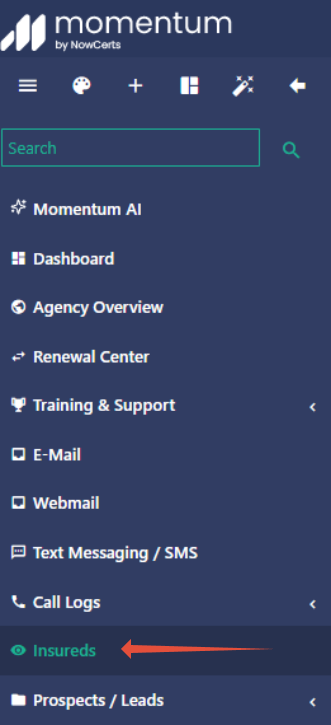
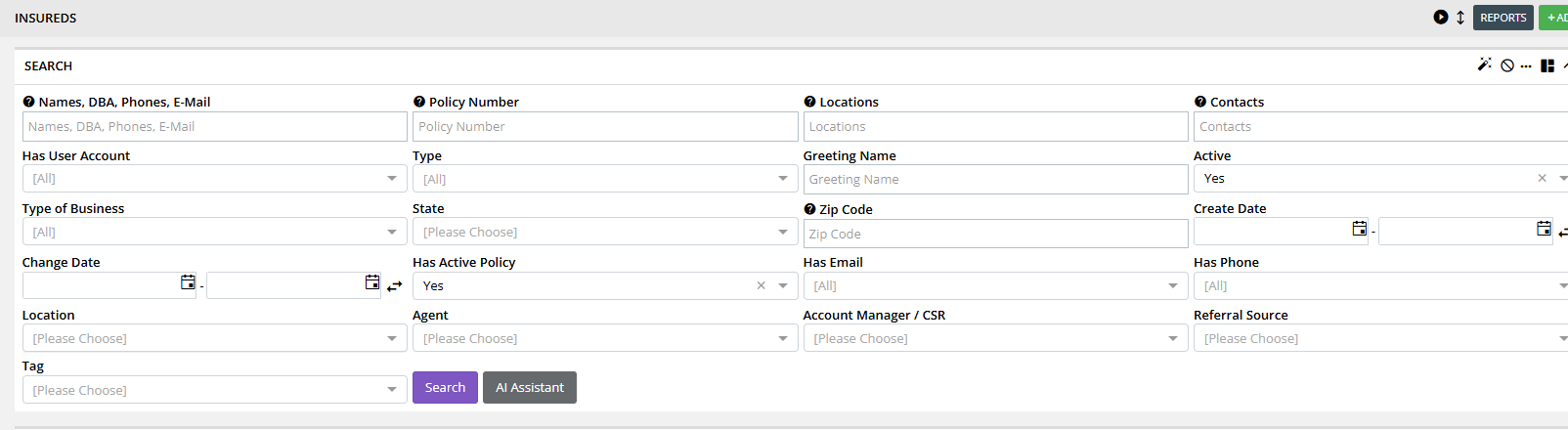
Apply any filters or search criteria as needed.
2. Open the Export Menu
In the top-right corner of the Insureds list, click the export icon.
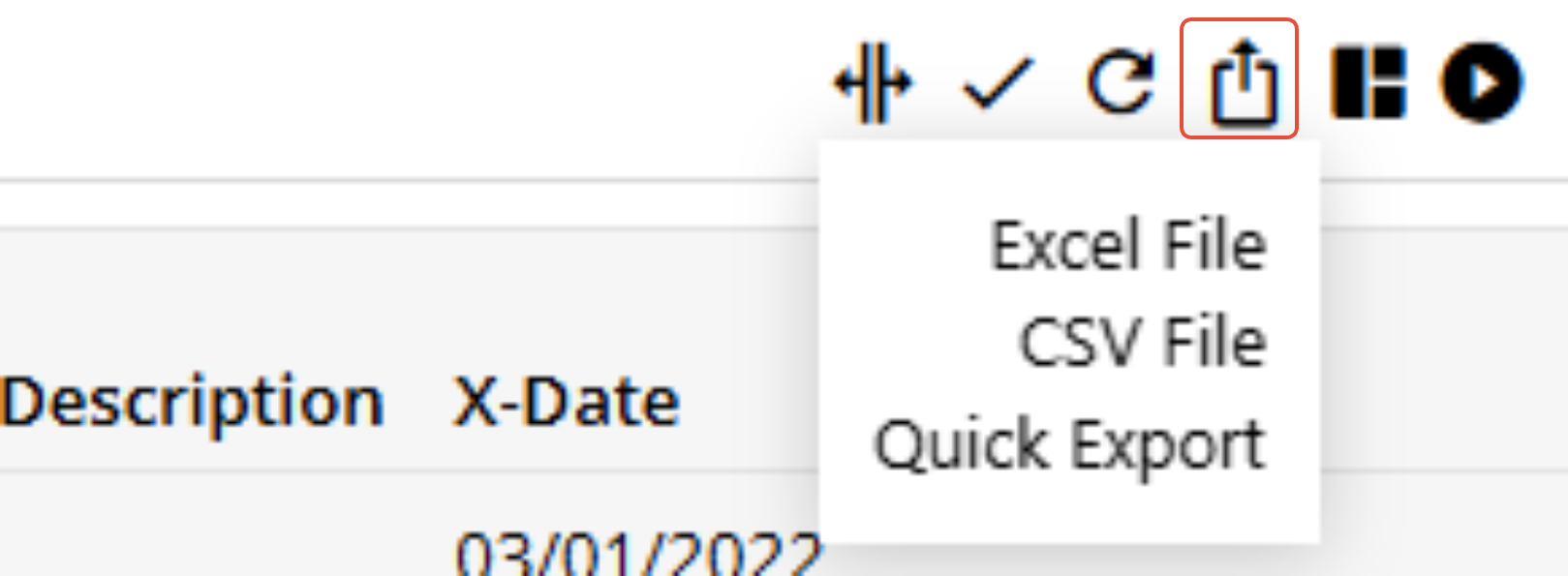
Choose one of the available options:
Excel File
CSV File
Quick Export
3. Download the File
The file will generate and download automatically.
The export includes only the insured records currently visible based on your filters.
Exporting Policies
1. Navigate to the Policies List
From the left-hand navigation, click Policies.
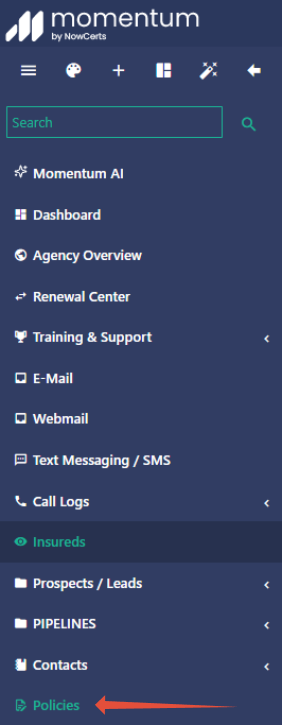
Use filters to narrow down results if needed.
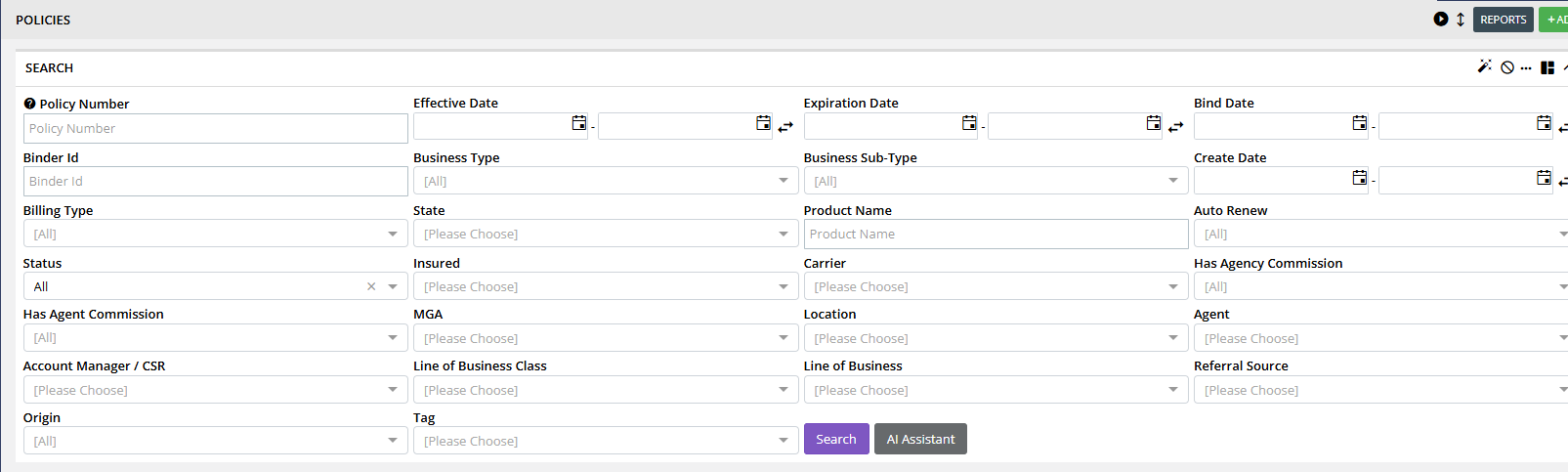
2. Open the Export Menu
In the top-right corner of the Policies list, click the export icon.
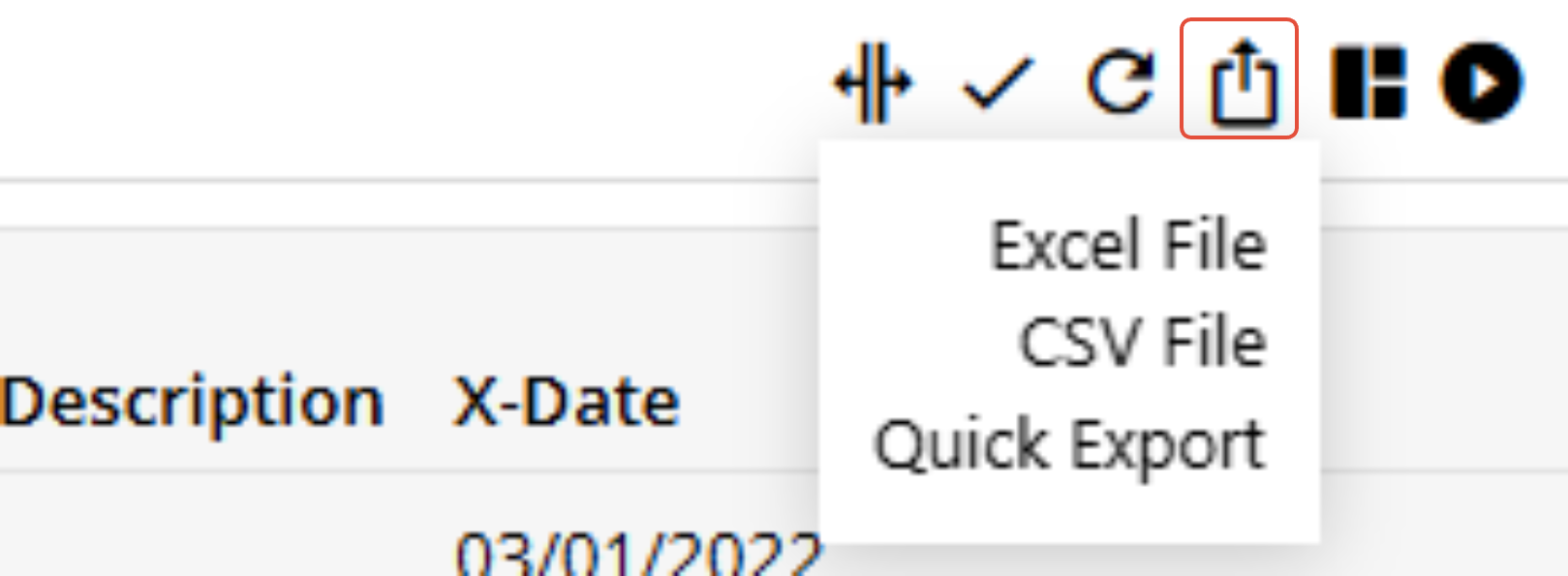
Select:
Excel File
CSV File
Quick Export
3. Download the File
The exported file will include the policies currently shown in the list view.
What Is Included in List Exports
Exports from the Insureds and Policies list views include basic, high-level information, such as:
Insured or Policy name
Policy number
Carrier
Effective and expiration dates
Status
Premium and non-premium totals (where applicable)
Assigned agents, CSRs, and locations (if displayed in the list)
The export reflects exactly what is available in the list grid, not the full record.
Important Limitations of List Exports
List exports do NOT include:
Files or attachments
Notes or activities
Vehicles
Drivers
Properties
Endorsement details
Certificates
Claims
Detailed line-item or coverage data
These exports are not a full system backup and are not suitable for data migration or full data recovery.
Requesting a Full Data Backup
If you need a complete copy of your Momentum AMS data, including files and detailed policy information, you must request a paid data backup.
To request a data backup, submit the form at the link below:
Data Backup Request Form
https://apiautomate.nowcerts.com/widget/survey/Yr0CZf99VGy9HuXTS6p9
After submission, our team will review your request and provide next steps, pricing, and delivery details.
Best Practices
Use list exports for reporting, auditing, or spreadsheet analysis.
Do not rely on list exports for compliance, migration, or archival needs.
Always confirm the required data scope before requesting a full backup.
Was this article helpful?
That’s Great!
Thank you for your feedback
Sorry! We couldn't be helpful
Thank you for your feedback
Feedback sent
We appreciate your effort and will try to fix the article