Notes provide a central place to document customer conversations, endorsement requests, and service activity. Depending on the request, you may simply save the note, add a reminder for future follow-up, or create a task when additional workflow management is needed. Starting with a note creates a complete history of the request while reducing duplicate data entry.
Understanding Notes vs. System Logs
It is important to understand the difference between Notes and System Logs.
Notes
Notes serve as your agency's activity journal.
Use Notes to document:
- Customer phone calls
- Emails
- Endorsement requests
- Conversations
- Follow-up information
- Internal documentation
Notes are intended to tell the story of what happened with the account.
System Logs
System Logs automatically record actions performed within Momentum AMS, such as:
- Records being created
- Policy updates
- User activity
- System-generated events
Unlike Notes, System Logs require no user input and are maintained automatically.
Step 1 – Create a Note
Open the insured record and select Add Note.
Document the customer's request with as much detail as possible.
Examples include:
- Add a mortgagee
- Add a vehicle
- Remove a driver
- Change a mailing address
- Update a lienholder
If applicable, associate the note with the appropriate policy.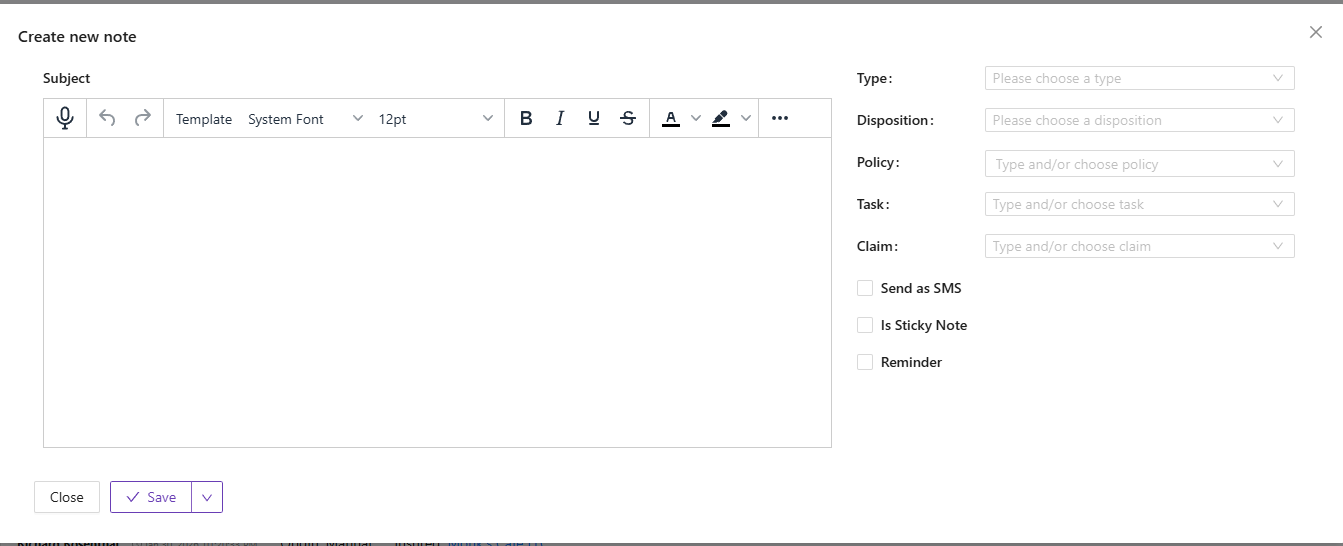
Step 2 – Decide How the Request Should Be Managed
Once the note has been created, choose the workflow that best fits the request.
Option 1 – Save the Note Only
For simple requests that can be completed immediately, the note itself may be all that is needed.
Option 2 – Add a Reminder
If the request requires future follow-up, add a reminder to the note.
Examples include:
- Waiting for underwriting approval
- Following up with the insured
- Checking for requested documents
- Verifying carrier processing
This allows you to track future action without creating a separate task.
Option 3 – Create a Task
If the request requires assignment or workflow tracking:
- Open the note
- Select Actions
- Choose Create Task
Momentum AMS automatically copies the contents of the note into the task description.
This eliminates duplicate typing while preserving all of the original request details.
Step 3 – Configure the Task
If creating a task:
Update the task with:
- Title
- Assigned User
- Priority
- Category
- Stage or Status
For example:
Instead of using the full request as the title, use a concise description such as:
- Add Mortgagee
- Add Vehicle
- Remove Driver
- Address Change
The detailed request remains available within the task description.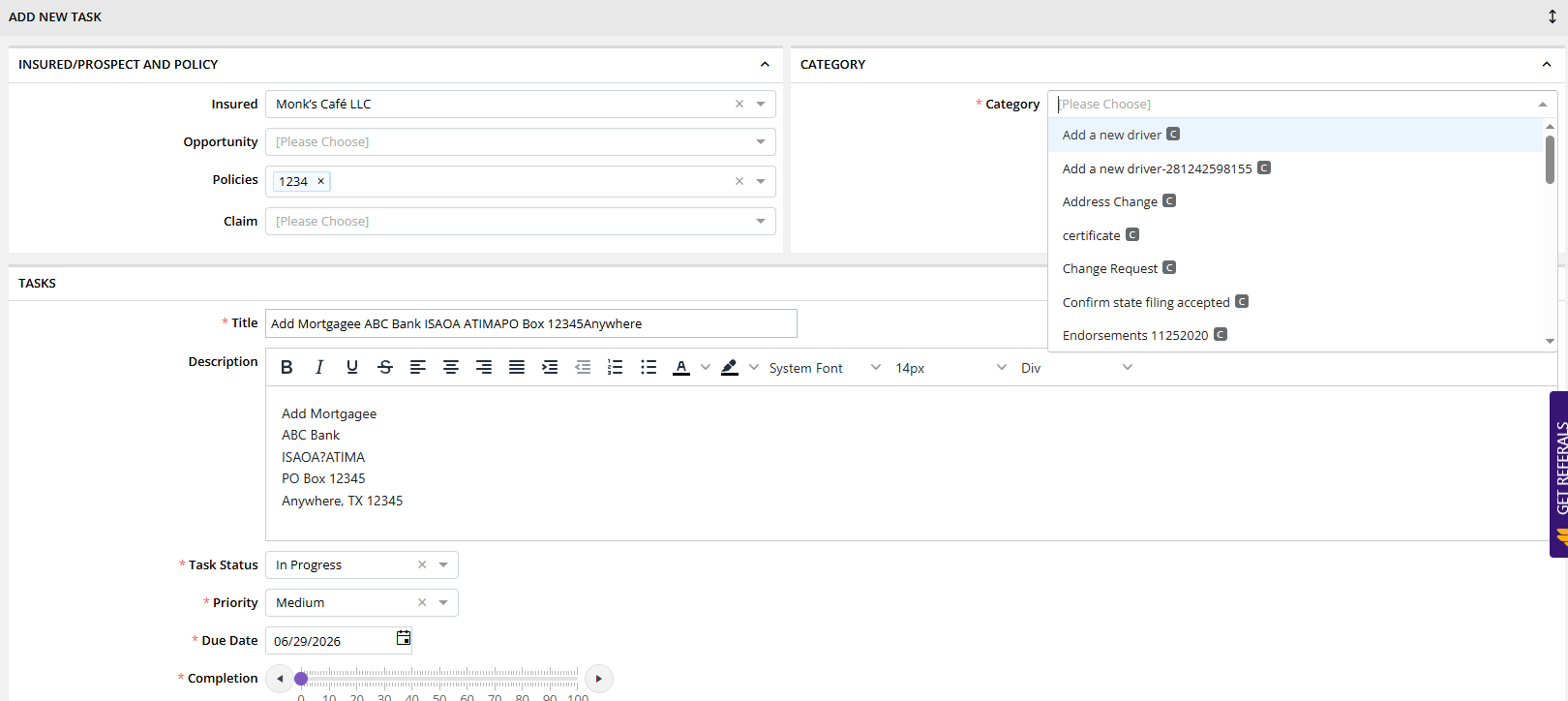
Collaborating with Your Team
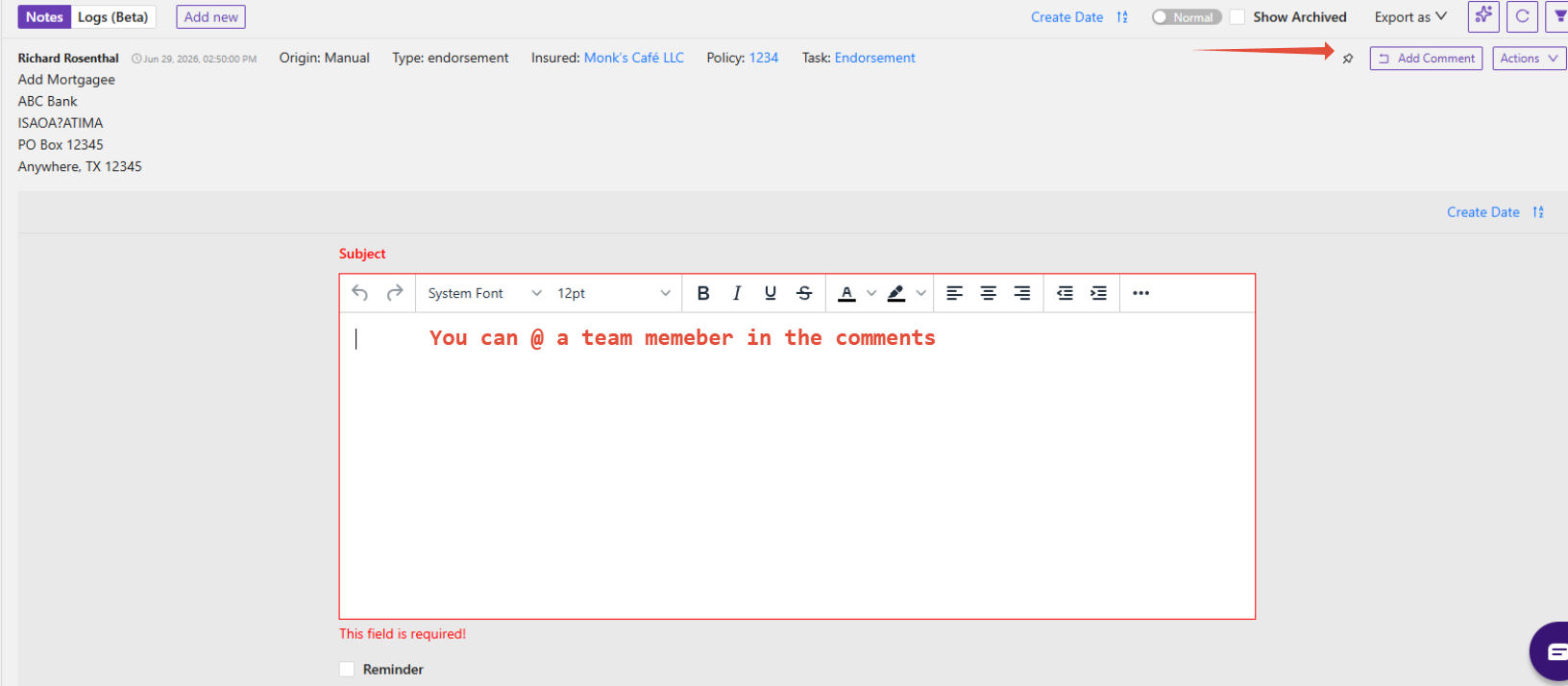
Notes also support internal collaboration.
Team members can:
- Add comments
- Document updates
- Record progress
- Keep everyone informed as work is completed
This creates a complete history of the request and helps eliminate unnecessary emails or separate conversations.
Why This Workflow Is Recommended
Starting with a note allows your agency to:
- Preserve the original customer request
- Build a complete activity history
- Reduce duplicate data entry
- Improve communication between team members
- Decide whether a reminder or task is actually necessary
Not every service request requires a task. In many cases:
- A note is sufficient.
- A note with a reminder is sufficient.
- A task should only be created when work needs to be assigned, tracked, or managed through your workflow.
Best Practices
- Always document customer requests using Notes.
- Associate the note with the appropriate policy whenever possible.
- Use reminders for follow-up work that does not require assignment.
- Create tasks only when workflow tracking is needed.
- Use concise task titles and keep detailed information within the note or task description.
- Encourage team members to add comments as work progresses.
Example Workflow
- Customer requests a policy change.
- Create a note documenting the request.
- Associate the note with the appropriate policy.
- Determine the appropriate next step:
- Save the note
- Add a reminder
- Create a task
- Complete the endorsement.
- Add comments or updates to the note as work progresses.
Summary
Notes are the foundation of documenting customer service activity in Momentum AMS. They serve as the agency's activity journal, capturing conversations, requests, and follow-up information.
From a note, you can choose the workflow that best fits the situation:
- Save the note for documentation.
- Add a reminder for future follow-up.
- Create a task when work needs to be assigned or tracked.
Using this approach creates a complete history of the endorsement while giving your agency the flexibility to manage service requests in the way that best fits your workflow.
Was this article helpful?
That’s Great!
Thank you for your feedback
Sorry! We couldn't be helpful
Thank you for your feedback
Feedback sent
We appreciate your effort and will try to fix the article