Direct Bill commission downloads allow agencies to record and reconcile commission payments received from insurance carriers through Carrier Downloads in Momentum AMS.
Unlike policy change downloads, which update policy information for endorsements, cancellations, and renewals, Direct Bill commission statements contain payment and commission transactions reported by the carrier.
This article explains how to locate and review Direct Bill commission downloads, understand matching and processing indicators, merge transactions, create agency commission statements, and handle downloads that have already been processed.
Important: When processing a new Direct Bill commission download, the recommended action is Merge and Create DB Statement. This merges the commission transactions and creates the agency statement in one process.
1. Understanding Direct Bill Commission Downloads
Direct Bill commission downloads provide commission payment information from insurance carriers.
These downloads are different from policy change downloads because they contain financial transactions associated with commissions paid to the agency.
Processing a Direct Bill commission download generally involves:
- Locating the Direct Bill download session.
- Reviewing the incoming commission transactions.
- Reviewing the insured and policy matching information.
- Selecting the transactions to process.
- Using Merge and Create DB Statement.
- Reviewing the resulting agency commission statement.
- Verifying that the appropriate agent commissions have been generated, when applicable.
Important: A download should only be merged once. Re-merging commission information that has already been processed can duplicate financial transactions in Momentum AMS.
2. Access Direct Bill Commission Downloads
Step 1: Open Carrier Downloads
- From Momentum AMS, navigate to Downloads > List of Sessions.
- Locate the session labeled Direct Bill.
- Review the carrier and session information to identify the statement you want to process.

Step 2: Open the Download Session
- Locate the applicable Direct Bill session.
- Click Actions.
- Select View and Merge.
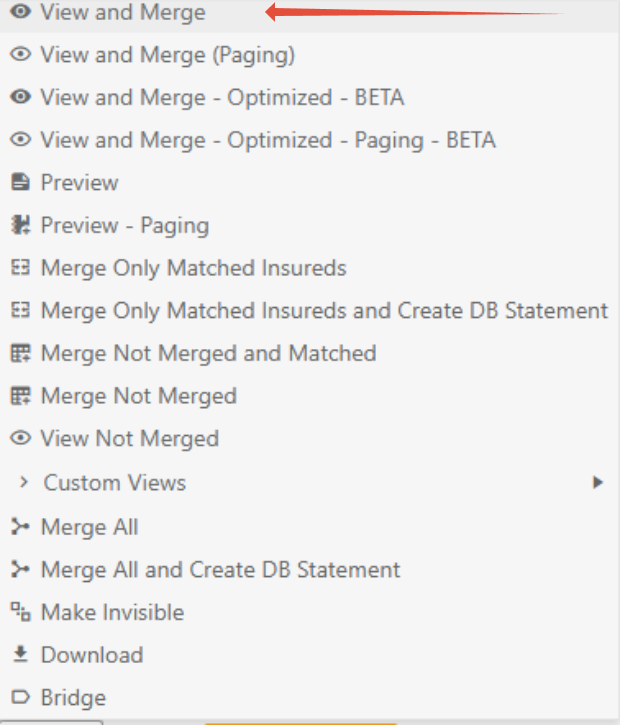
The View and Merge screen displays the commission transactions received from the carrier.
3. Review the Commission Transactions
Before merging the download, review the incoming commission transactions.
Pay particular attention to:
- Insured names.
- Policy numbers.
- Commission amounts, including negative adjustments.
- Transaction and payment information.
- Existing insured and policy matches.
- Any indications that transactions have already been processed.
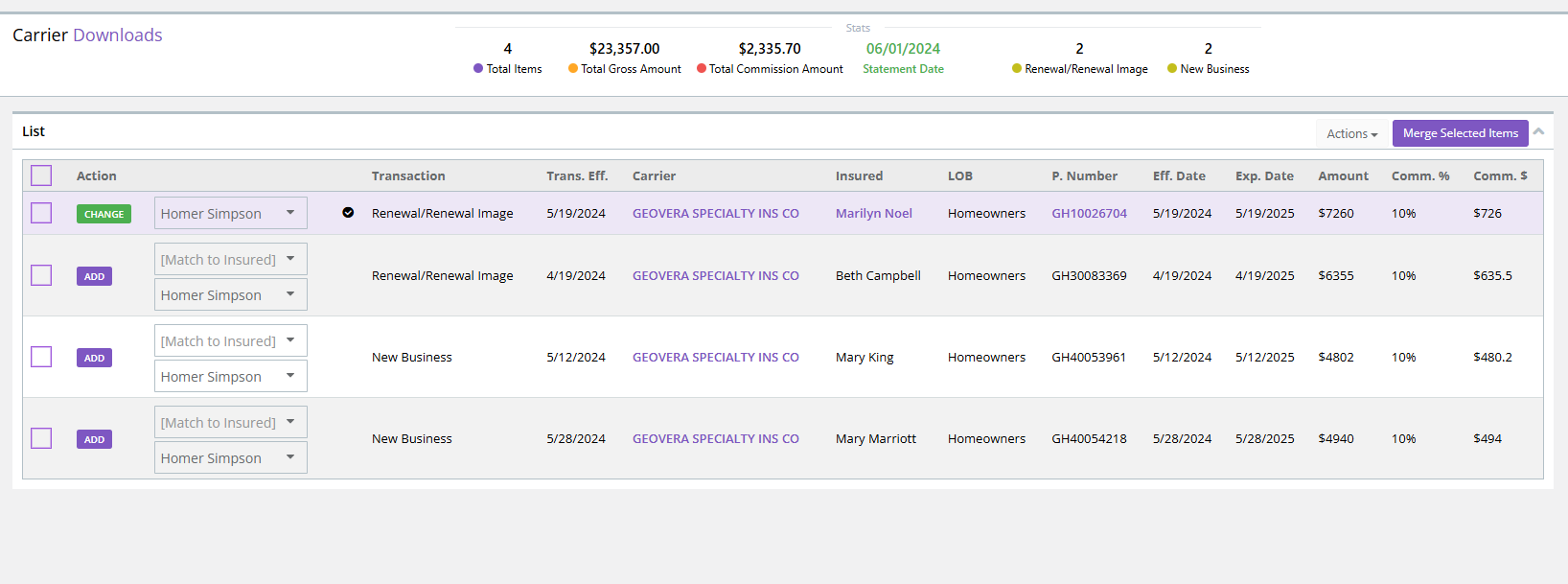
Understanding Insured and Policy Matching
Momentum AMS attempts to match the information received from the carrier with existing insured and policy records.
Matching information may include insured names and previously stored aliases.
If the system cannot identify an existing match, the merge screen may display Add next to the transaction.

This indicates that a corresponding record was not identified and that a new insured or policy record may be created during the merge.
If you know the insured already exists in Momentum AMS, review the available Match to Insured option to associate the transaction with the correct existing record.
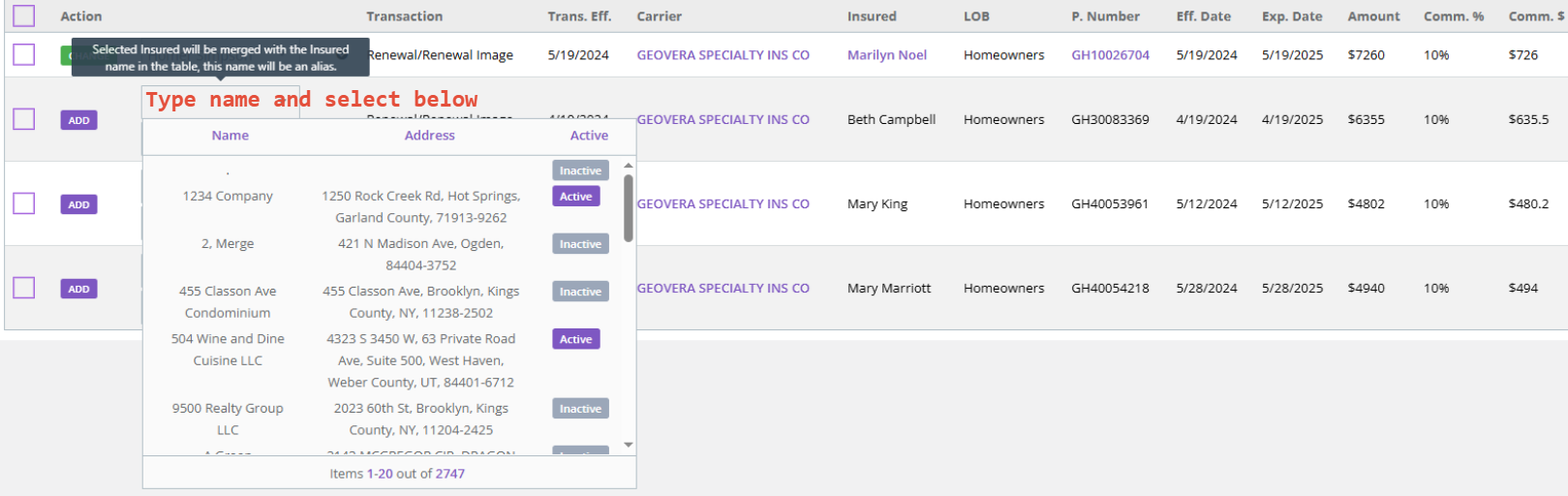
Best Practice: Review potential matches before merging to avoid creating unnecessary duplicate insured or policy records.
Missing insured or policy records do not necessarily prevent the download from being processed. The merge process can create records when appropriate.
4. Understanding Download Status and Transaction Indicators
Before processing a commission download, it is important to distinguish between the status of the download session and the information displayed for individual transactions.
What Does CONSUMED Mean?
CONSUMED means the download has already been merged into Momentum AMS.
When a download is consumed, its information has already been processed.
A consumed download should not be merged again.
Re-merging commission transactions that have already been processed can duplicate financial information, including commission payments.
If a download is marked CONSUMED, do not merge it again.
If an agency statement was not created during the original merge, use the Reconciliations workflow to create a statement from the existing commission payments.
What Does the Circled Check Mark Mean?
When reviewing transactions on the View and Merge screen, you may notice a check mark inside a circle to the left of a transaction.
This indicator means the transaction has already been CONSUMED (merged into Momentum AMS).
If you hover your mouse over the circled check mark, the system displays Consumed, confirming that the transaction has already been processed.
Important: A consumed transaction should not be merged again. Re-merging commission transactions can create duplicate commission payments and financial records.
If the transaction was previously merged without creating an agency commission statement, navigate to Miscellaneous > Accounting Items > Reconciliations to locate the existing commission payments and create the statement from those transactions.
Remember: The circled check mark indicates that the transaction has already been consumed. It does not necessarily mean an agency commission statement was created.
5. Merge the Direct Bill Commission Download
For a new Direct Bill commission download that has not already been consumed, the recommended action is Merge and Create DB Statement.
Step 1: Select the Transactions
- Review the incoming commission transactions.
- Select the checkboxes next to the transactions you want to process.
- Verify that you are not attempting to reprocess previously merged commission transactions.
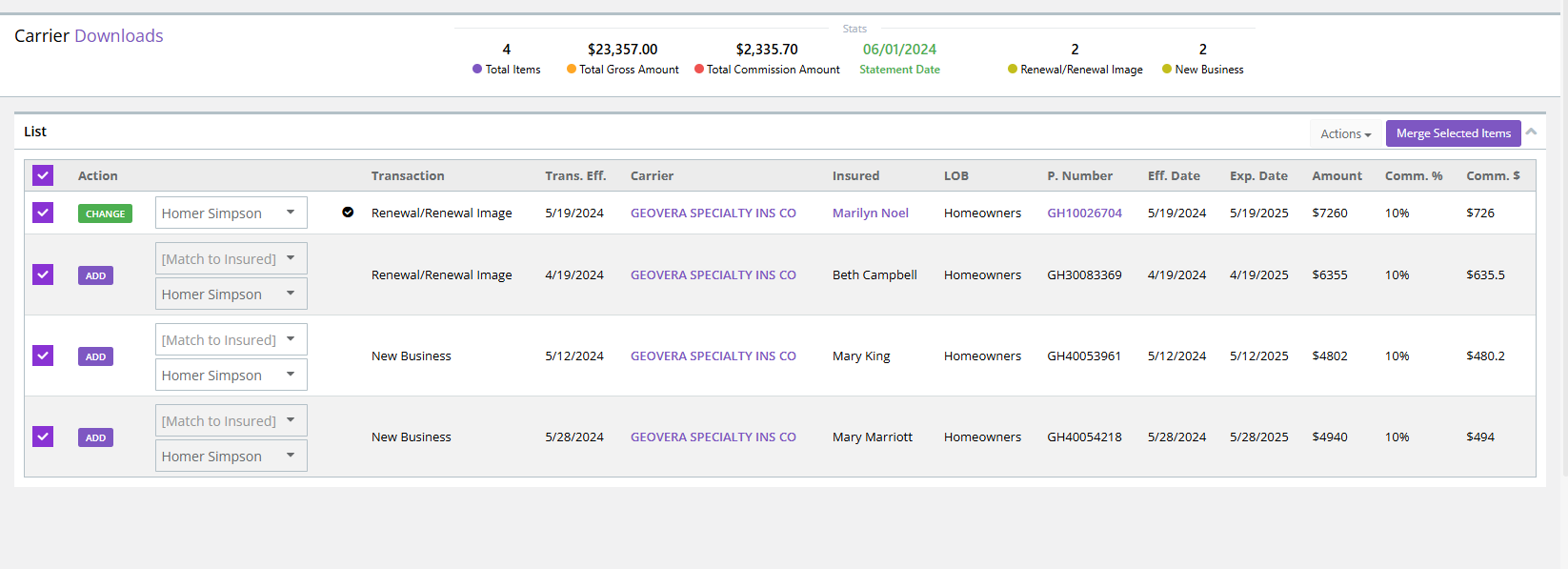
Step 2: Merge and Create the Agency Statement
- With the applicable transactions selected, open the Actions menu.
- Select Merge and Create DB Statement.
- Allow Momentum AMS to complete the merge process.
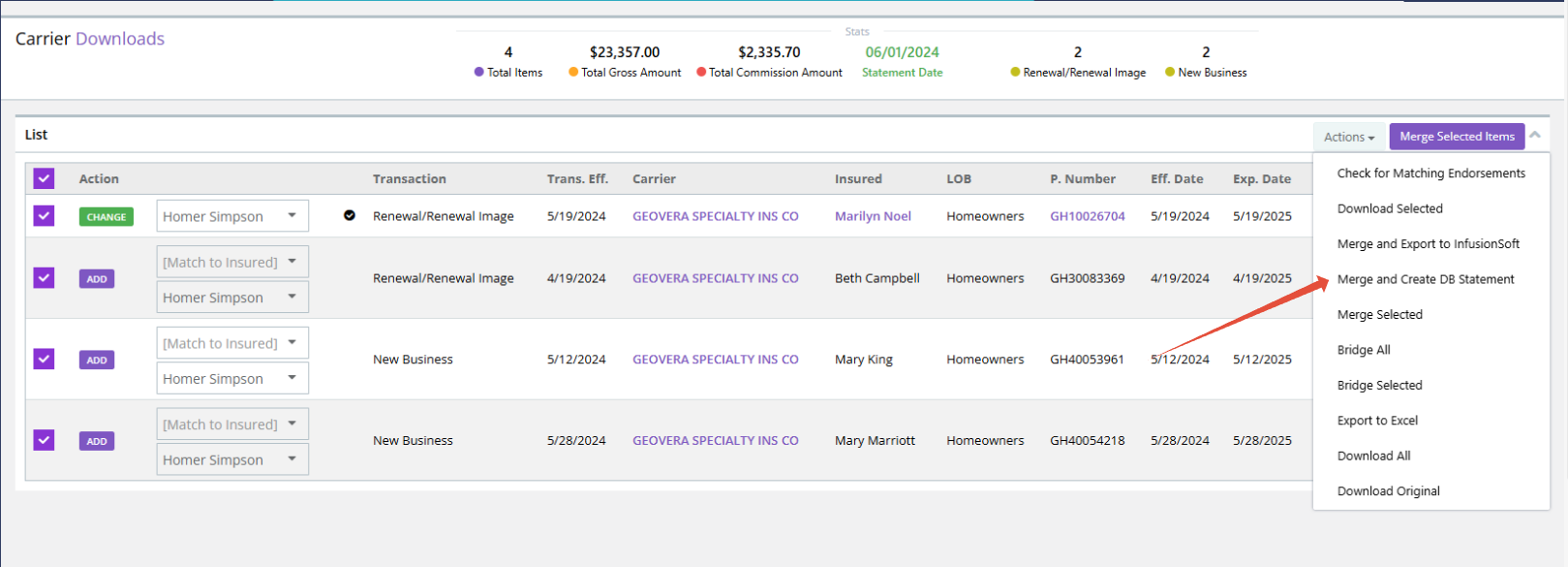
This action performs two important functions:
- Merges the downloaded commission transactions into Momentum AMS and applies the information to the appropriate policies.
- Creates the corresponding Direct Bill agency commission statement for reconciliation and review.
Merge and Create DB Statement: Merges the commission transactions and creates the agency statement. This is the recommended action for processing new Direct Bill commission downloads.
Merge Selected Items: Merges the selected transactions without creating the corresponding agency statement.
If you use Merge Selected Items for a commission download, the information is already merged. You must then create the agency statement using the existing commission payments through Reconciliations.
6. What If the Download Was Already CONSUMED?
If a Direct Bill commission download is marked CONSUMED, the download has already been merged into Momentum AMS.
This is true whether the download was processed using Merge Selected Items or Merge and Create DB Statement.
The difference is whether the agency commission statement was created as part of the original process.
Scenario A: The Download Was Merged and a DB Statement Was Created
If you originally selected Merge and Create DB Statement, the commission transactions were merged and the agency statement was created.
To review the statement:
- Navigate to Miscellaneous > Accounting Items > Agency Statements.
- Locate the corresponding Direct Bill statement.
- Review the commission transactions and statement totals.
No additional merge is necessary.
Scenario B: The Download Was Merged Without Creating a DB Statement
If you originally selected Merge Selected Items, the commission transactions were merged into Momentum AMS, but the agency statement was not created through that action.
Do not return to Carrier Downloads and merge the download again.
Instead, create the agency statement from the existing commission payments through the Reconciliations module.
Creating an Agency Statement from Previously Merged Commissions
- Navigate to Miscellaneous > Accounting Items > Reconciliations.
- Locate the existing commission payment transactions associated with the carrier statement.
- Review the transactions to identify those that belong to the statement.
- Use the appropriate agency commission reconciliation action to create a new agency statement from those existing transactions.
- Review the resulting statement under Agency Statements.
This process allows you to create the agency commission statement without importing or merging the same commissions a second time.
CONSUMED = Already Merged.
If the download was already merged, do not repeat the merge.
If the agency statement is missing, create it using the existing commission payments in Reconciliations.
7. Review the Agency Commission Statement
After processing the Direct Bill commission download using Merge and Create DB Statement, the agency commission transactions are reconciled and the corresponding statement is available for review.
Access Agency Statements
- Navigate to Miscellaneous.
- Select Accounting Items.
- Open Agency Statements.
- Locate the statement associated with the carrier download.
Automatically generated Direct Bill statements may use the following naming format:
DB_NAME OF CARRIER_DATE AND TIME
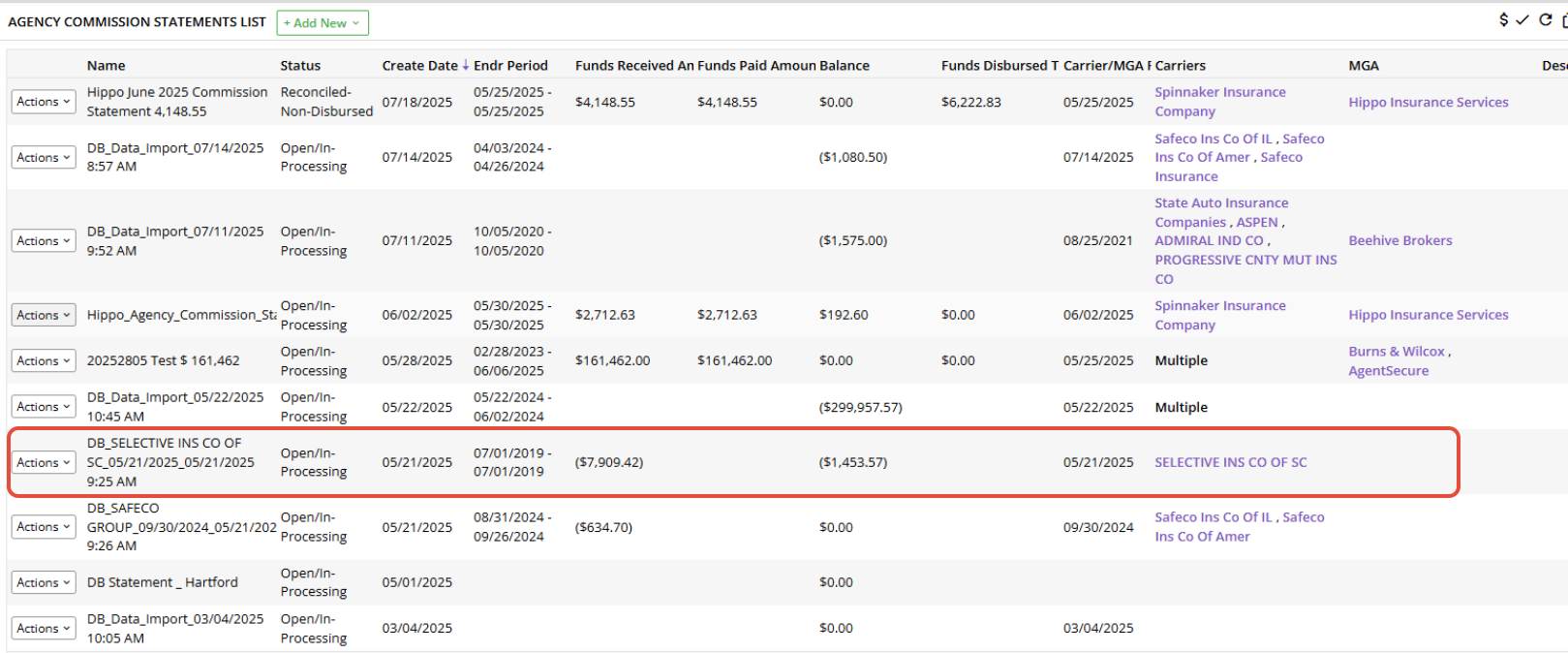
Review and Edit the Statement
- Locate the applicable agency statement.
- Click Actions > Edit.
- Review the statement information and commission transactions.
- If necessary, update the statement name to make it easier to identify.
- Compare the statement totals against the original carrier statement.
Verify that the expected commission transactions are included and that the amounts correspond with the carrier's reported payments.
8. Verify Agent Commissions
After agency commissions have been reconciled, verify that the appropriate agent commission transactions have been generated when applicable.
Agency commission reconciliation and agent commission reconciliation are separate processes.
Review Agent Commissions
- Open the agency commission statement.
- Locate the small triangle at the top of the statement.
- Click the triangle to expand the agent commission information.
- Review the commissions associated with the agents.
Generate Missing Agent Commissions
If agent commissions are missing, first verify that the appropriate agents are assigned to the policies and that applicable agent commission rules exist.
To generate commissions from an agency statement:
- Navigate to Miscellaneous > Accounting Items > Agency Statements.
- Locate the appropriate statement.
- Click Actions.
- Select the appropriate option to generate agent commissions, splits, or referral source commissions.
- Review the resulting agent commission transactions.
Once the agent commissions have been generated and verified, continue with the separate agent commission reconciliation process when applicable.
9. Common Questions and Troubleshooting
What does CONSUMED mean?
CONSUMED means the carrier download has already been merged into Momentum AMS. Do not merge it again.
Can I merge a CONSUMED Direct Bill download again to create a statement?
No. Re-merging previously processed commission information can duplicate commission transactions and payments.
If the agency statement was not created during the original merge, use Reconciliations to create the statement from the existing commission payments.
What happens if I selected Merge Selected Items instead of Merge and Create DB Statement?
The commission transactions were merged, but that action did not create the agency statement.
Do not merge the download again. Create the statement from the existing commission payments through Reconciliations.
Which action should I use for a new Direct Bill commission download?
Use Actions > Merge and Create DB Statement. This merges the transactions and creates the agency commission statement in one process.
What if an insured or policy is not matched?
Review the matching information before merging. If the correct insured already exists, use the available matching option to associate the transaction with that record.
If no matching record exists, the merge process can create the necessary insured or policy record.
What if I cannot find the agency statement after processing a download?
First, review Miscellaneous > Accounting Items > Agency Statements.
If the download was already merged without creating a statement, use Reconciliations to locate the existing commission payments and create the agency statement.
Do not re-merge the download.
What if agent commissions were not generated?
Verify the agent assignments and applicable agent commission rules. Then use the appropriate Actions option from the agency statement to generate the missing agent commissions.
10. Best Practices
- Use the correct action: For new Direct Bill commission downloads, select Merge and Create DB Statement.
- Never re-merge consumed downloads: CONSUMED means the download has already been merged.
- Review matching information: Verify insured and policy matches before processing.
- Avoid duplicate records: Review records marked Add when you know the insured or policy already exists.
- Review statements: Compare agency commission statement totals against the original carrier statement.
- Use Reconciliations for previously merged commissions: If a download was merged without creating an agency statement, create the statement from the existing payments rather than merging again.
- Verify agent commissions: Confirm that the applicable agent commission transactions have been generated.
- Process downloads regularly: Review carrier download sessions daily or weekly to avoid a backlog.
- Retain original statements: Keep the original carrier statement available for reconciliation and audit purposes.
11. Related Resources
- Reconciling Agency Commissions in Momentum AMS – Overview of agency commission reconciliation and statement review.
- How to Use the Commission Scan Feature in Momentum AI – Instructions for processing PDF, Excel, and CSV commission statements through Momentum AI.
- How to Use the Commission Scan Feature in the Momentum Toolbox – Instructions for processing commission statements through Momentum Toolbox.
- Troubleshooting Missing Commission Transactions in Momentum AMS
For additional assistance with commission reconciliation or previously merged Direct Bill downloads, contact Momentum AMP Support.
Was this article helpful?
That’s Great!
Thank you for your feedback
Sorry! We couldn't be helpful
Thank you for your feedback
Feedback sent
We appreciate your effort and will try to fix the article